


Editing dozens of photos individually can be time-consuming. The latest Xiaomi Gallery update solves this with the new Batch Photo Editing feature in Xiaomi HyperOS 3. This tool allows users to copy edits from one image and paste them across multiple photos instantly, streamlining mobile photo editing.
Why Do You Need Batch Editing?
Looking for a built-in mobile Lightroom alternative? This HyperOS 3 feature brings professional preset-style batch editing directly to your native gallery.
Achieving a uniform aesthetic across your photo albums is now much easier. Whether you are adjusting skin tones in a series of portraits or boosting the contrast in landscape shots, batch editing ensures visual consistency without requiring third-party applications. You no longer need to manually memorize and apply specific saturation or contrast values to every single image.
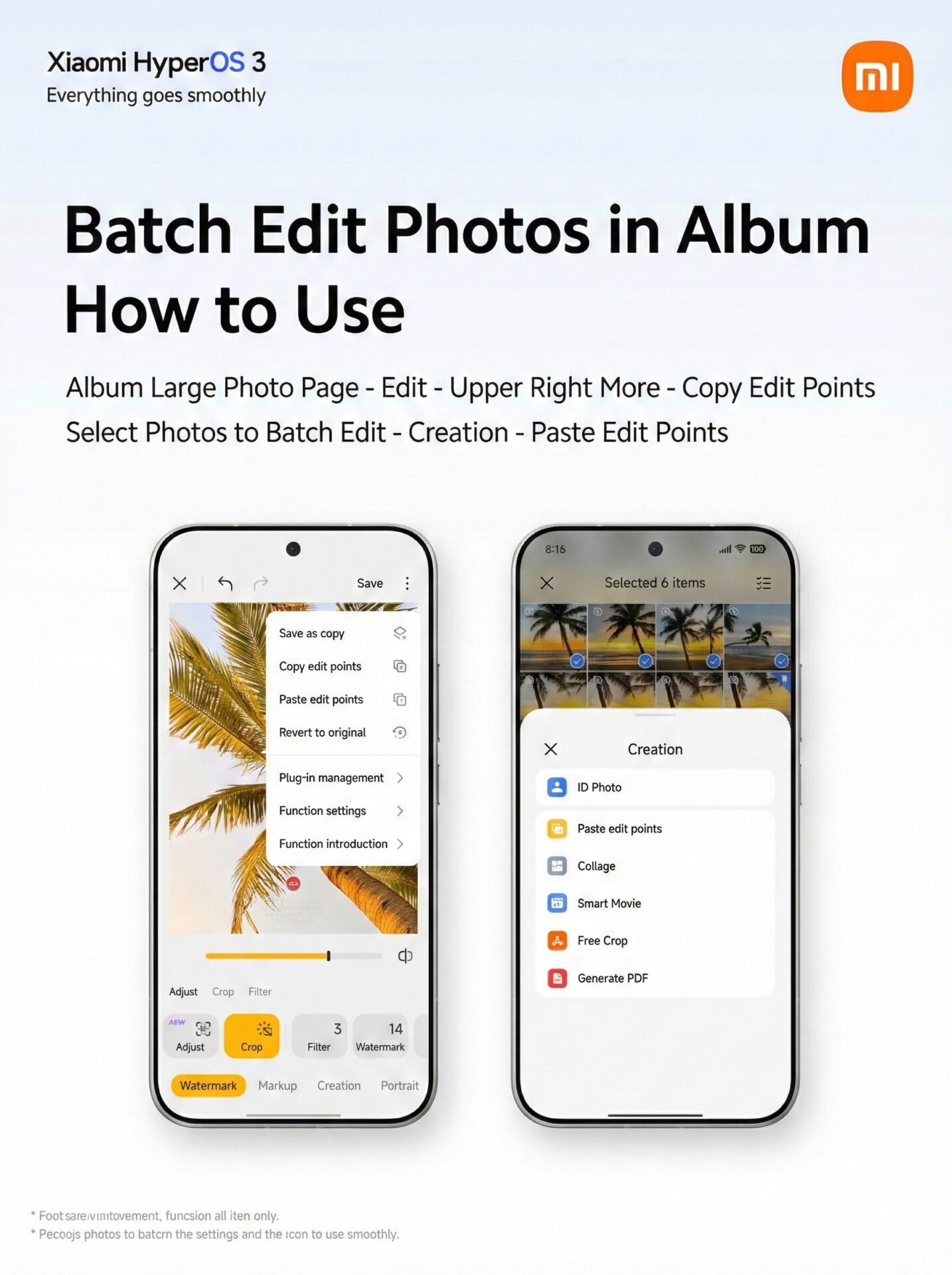

How to Use Batch Editing in Xiaomi Gallery?
Applying the same edits to multiple photos is a straightforward process following the recent Xiaomi Gallery update. Here is how to use the copy and paste edit points tool.
Prerequisites: Ensure you are running the latest version of the Xiaomi HyperOS 3 Gallery and the associated Gallery Editor app. Note that this feature is rolling out via server-side updates, so availability may vary even if your app is updated.
Step-by-Step Guide
Follow these four simple steps to apply batch edits to your images within the HyperOS interface.
-
Edit Your First Shot: Open your Gallery, select a photo, and enter Edit Mode. Adjust the lighting, filters, and color grading to your preference.
-
Copy the Edits: While still in the edit screen, tap the “More” (three-dot menu) in the top right corner. Select “Copy edit points”.
-
Select Target Photos: Return to the main grid view of your Gallery. Long-press to select all the other photos you want to apply these adjustments to.
-
Paste and Apply: Once your target photos are selected, locate the “Creativity” or options menu at the bottom of the screen. Tap “Paste edit points”.
Note: Image processing happens locally on your device hardware. If you select a large batch of high-resolution photos (such as 50MP RAW files), the process may take a few seconds to complete.
When is this Useful?
Batch photo editing is highly effective for maintaining consistent color grading across event photography, travel albums, and social media feeds.
This feature is particularly beneficial in the following scenarios:
- Golden Hour Photography: Lighting changes rapidly during a sunset. Getting the white balance right for one shot and applying it to the entire series keeps the color temperature accurate.
- Event Photography: Indoor events usually have static lighting conditions. A single edit can correct the exposure and color for an entire album.
- Visual Consistency: For social media users and content creators, maintaining a specific color grade across different posts is essential for visual identity.



