


Being a long-time Xiaomi user and HyperOS expert, the first thing I do with every new device is get rid of system ads and optimize the user experience. If there’s one thing annoying pop-ups do, it’s not just interrupt your workflow but actually slow you down, drain focus, and make the device feel less polished. Setting up my phone or configuring company devices, that’s always step one: remove distractions.
Below is my personal approach, the same process I’ve developed over years of working with HyperOS.
1. Disabling System Ads Through Settings
HyperOS still includes some ad-related services that must be manually toggled off. I start with the system-level options provided by Xiaomi, first of all-even if they are not always easy to find.
Turn Off HyperOS System Ads
- Open Settings
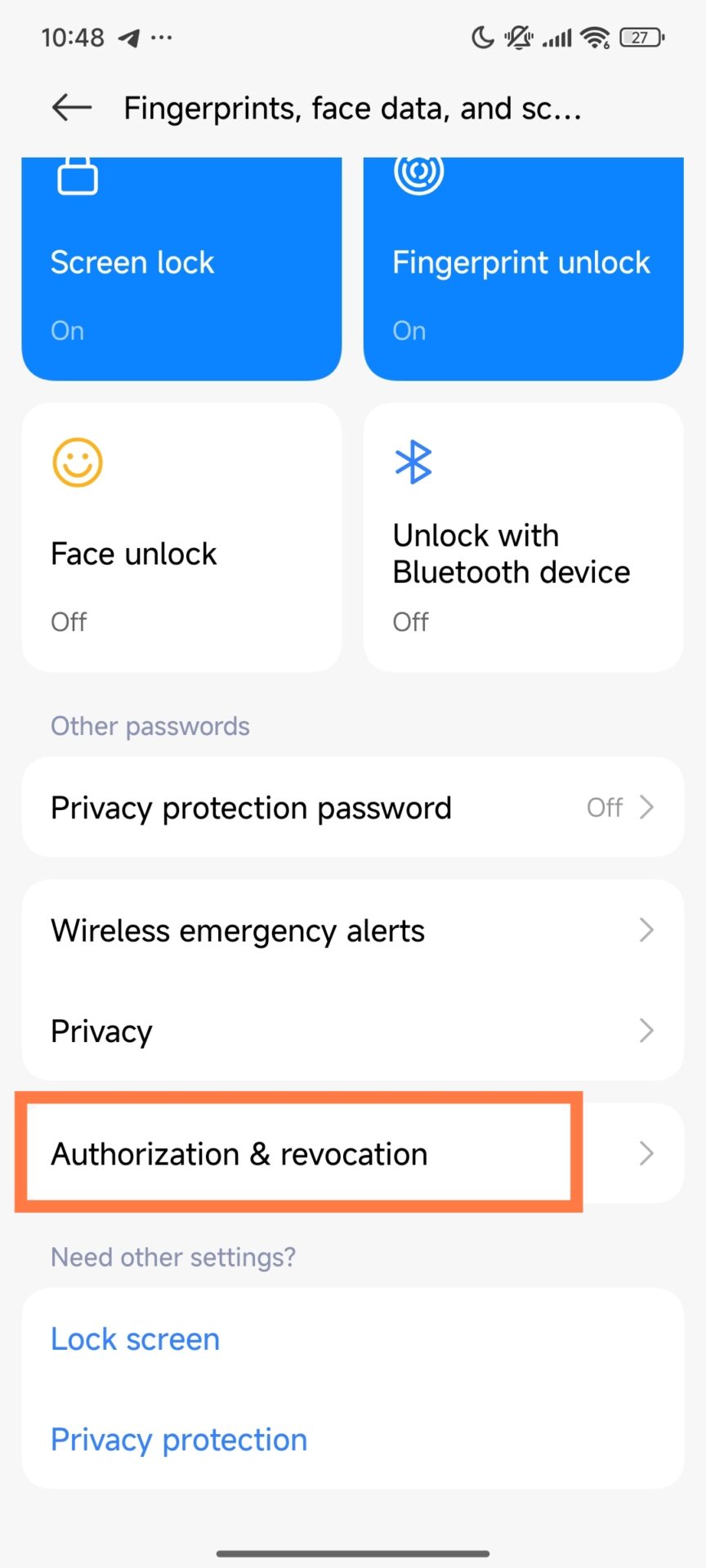
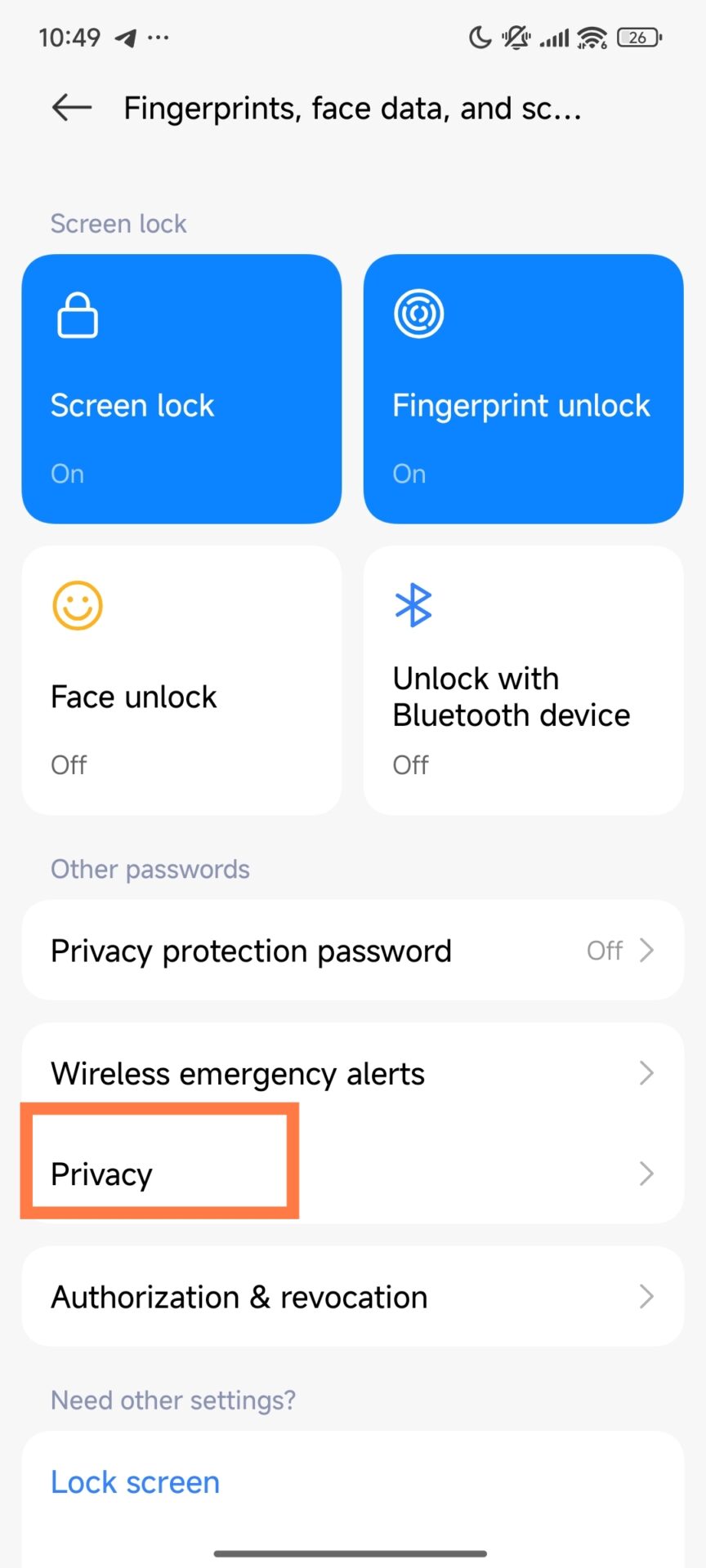
- Go to Fingerprints, Face Data & Screen Lock
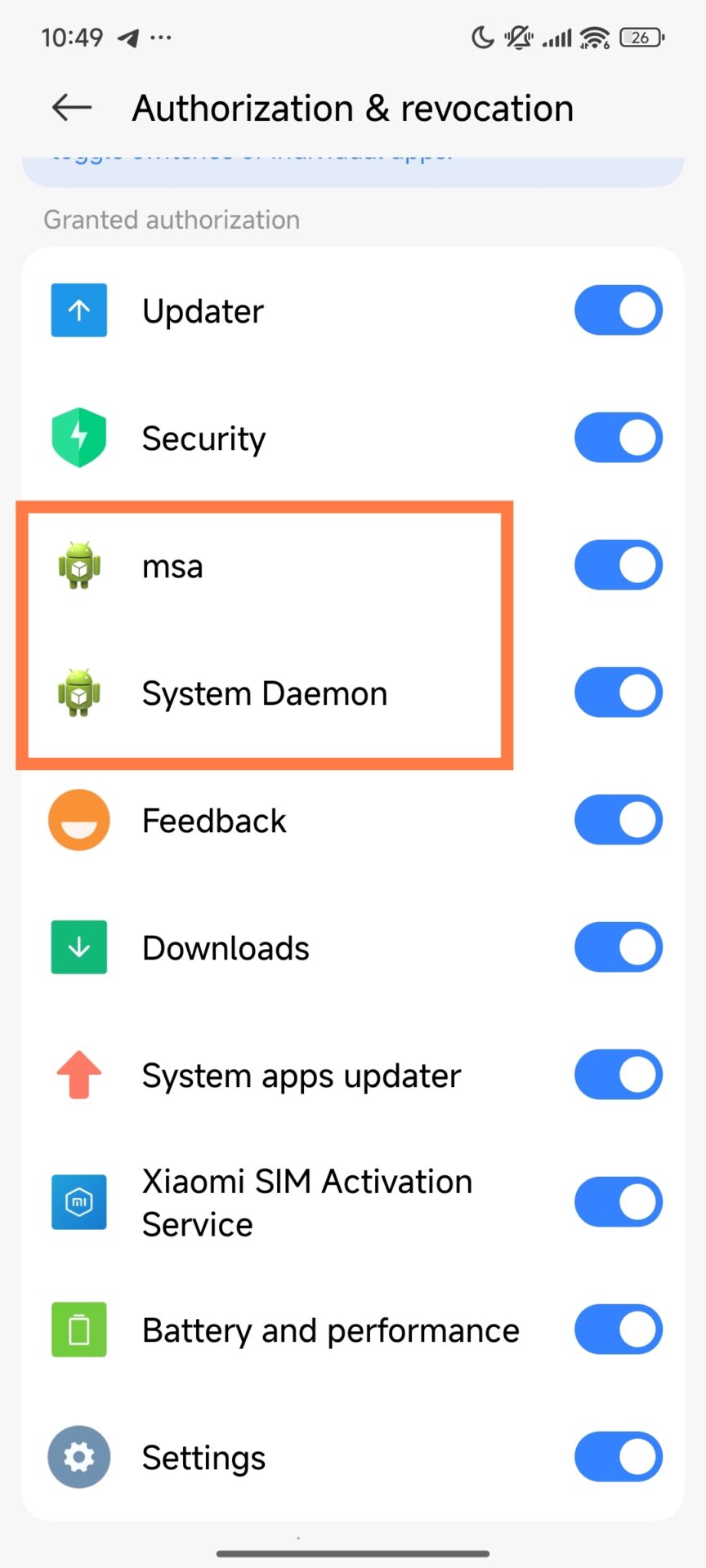
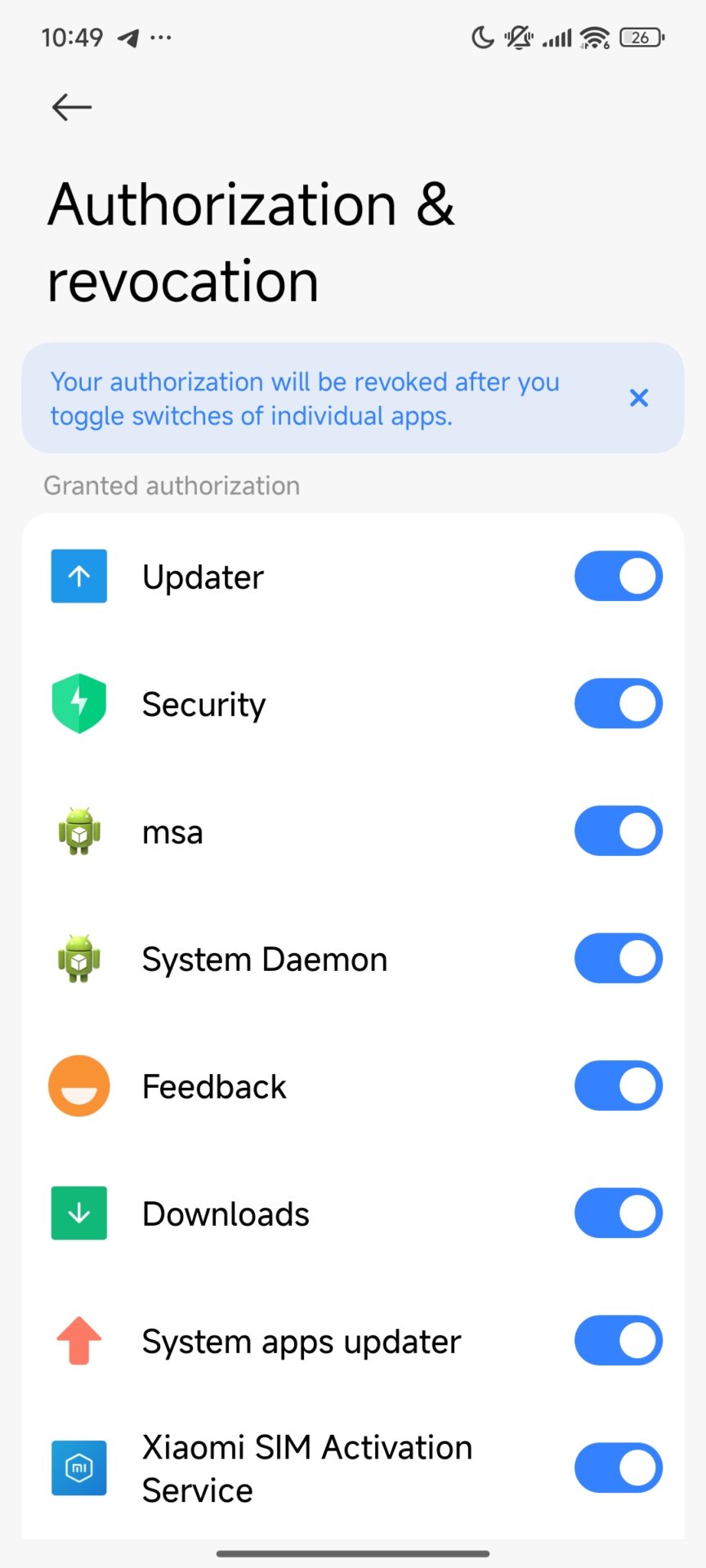
- Click on Authorization & Revocation
- Find MSA and MiuiDaemon or System Deamon
- Disable both
These two components account for most system ads, so once these are turned off, immediacy reduces interruptions.
Disable Personalized Ad Recommendations
- Open Settings
- Navigate to Passwords & Security
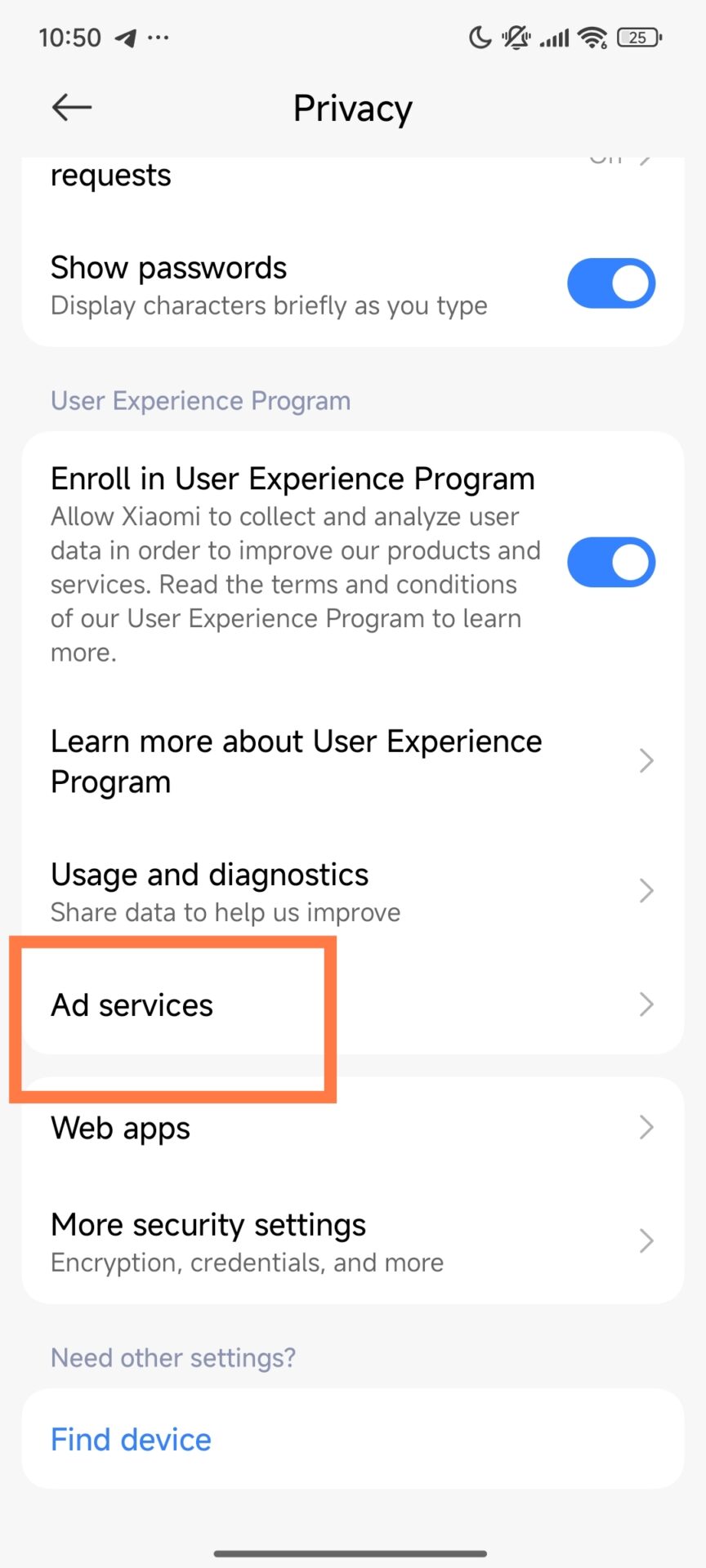
- Enter Privacy
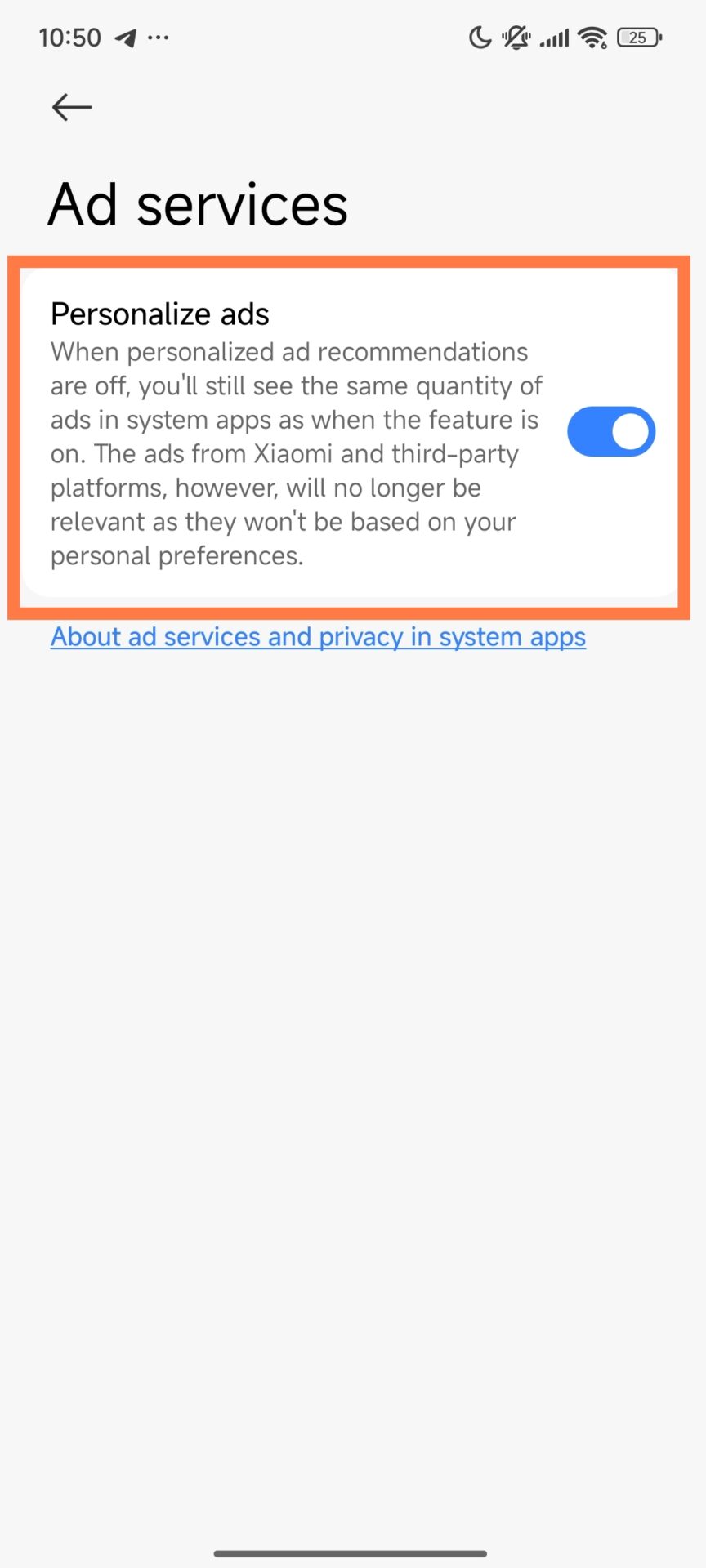
- Tap Ad Services
- Deactivate Personalized Ad Suggestions
This stops Xiaomi from using your data to target ads.
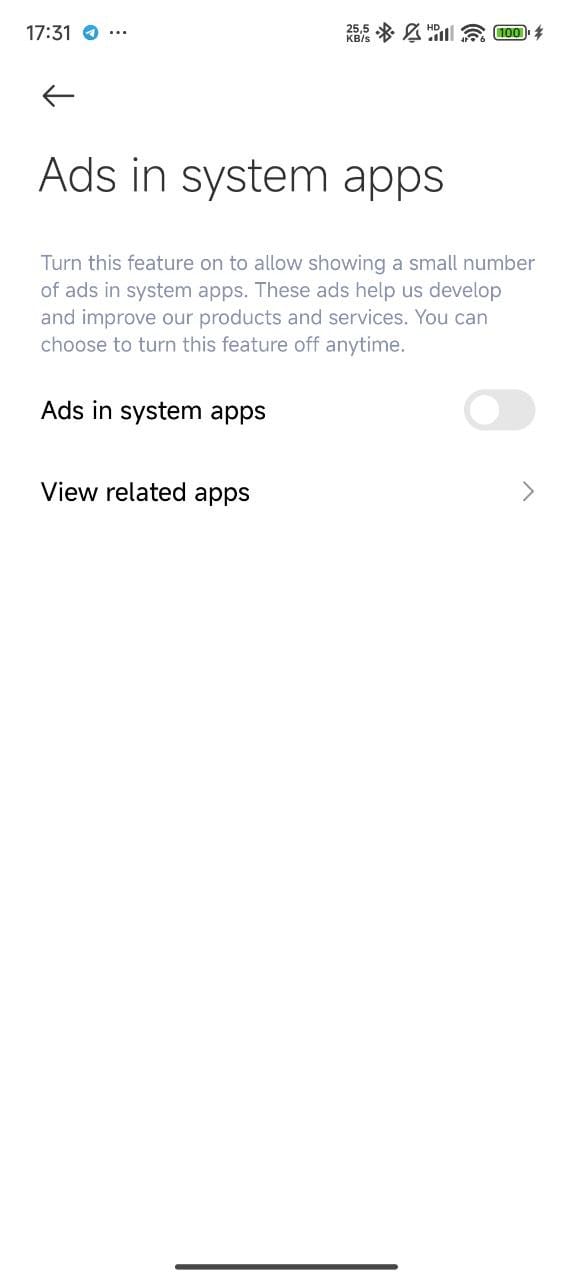
Turn Off System App Ads If Available
Not all devices have this option, but when they do, I always disable it:
- Open Settings
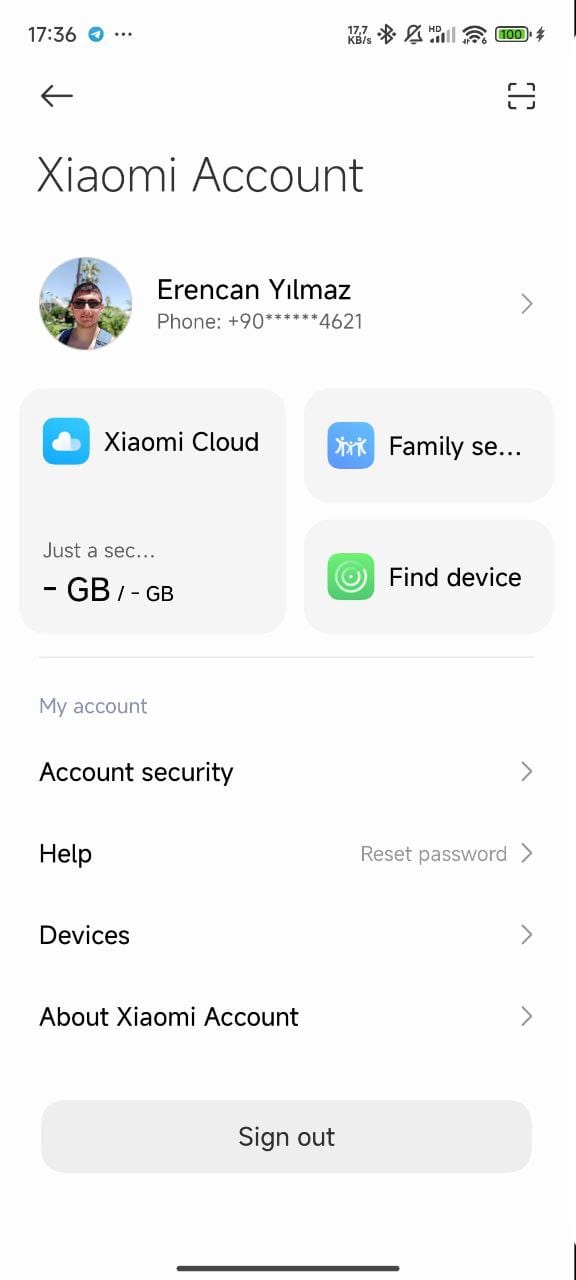
- Enter Mi Account
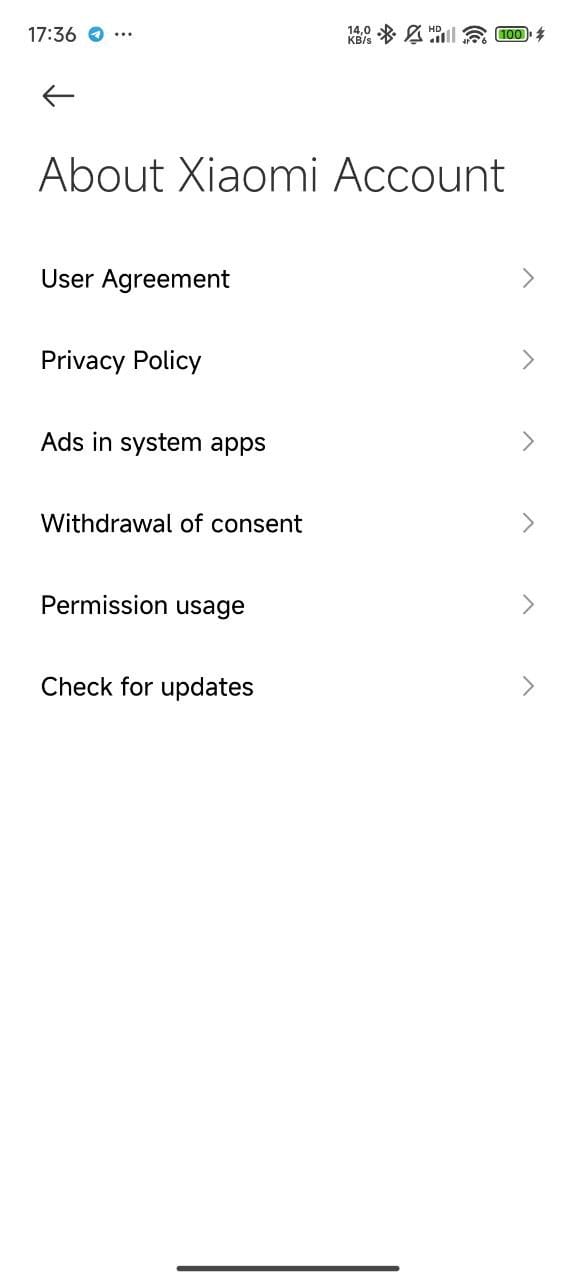
- Tap About Xiaomi Account
- Disable Ads in System Apps
With these steps completed, most visible ads across HyperOS are gone.
For more detailed guide follow our disabling ads in Xiaomi HyperOS guide.
2. Advanced Ad and Debloat Removal with ADB
I use ADB to uninstall ad-related system packages for a deeper cleanup, especially on corporate or shared/long-term business devices. This gives a clutter-free experience and is also good from a privacy perspective.
ADB Commands I Use
Once the device is connected and ADB is enabled, I run:
These remove analytics tools, regional services, pre-installed apps, and ad-delivery components.
⚠️ Important: ADB is powerful. Removing the wrong package can affect system functionality, so this step is best for advanced users or IT administrators. These remove analytics tools, regional services, pre-installed apps, and ad-delivery components.
Extra Optimization
For even more finetuning, I sometimes use the MemeOS Enhancer app from the Play Store, which provides extra controls for system behavior and performance, as well as updates, particularly in business.
Why This Matters
Once this is all set up, the Xiaomi device feels faster, cleaner, and far more professional. Productivity improves instantly, and privacy is enhanced via limited unnecessary data collection. This is why the first thing I do with any new HyperOS-powered phone is to remove the ads.



xioami Official company is best company in the world 🌎
I like these new updates which Xiaomi is bringing to use users. Keep it up.
very fantastic
I love how cool and realistic this post was.
it isn’t like “anti Xiaomi” (I mean, the website is about Xiaomi, it wouldn’t be) but it’s very pro-users like showing how to disable ads, disable bloat ware with a.d.b., etc.
that’s much more friendly and cool than being “oh duh duh I enable that setting or I download that app” no, it’s: the first thing I do and you should to is disable ads, tracking, telemetry and personalized bad stuff.
thx for the real post, I’ll absolutely be sharing it with any friend who wants to buy a Xiaomi device, Xiaomi makes the best and most cost-quality effectiveness devices but it’s all so much bloated with ads and everything (I mean, it makes sense, it needs to be cost effective and that’s how they achieve it), that guide is awesome!
That was very helpful. THX
Please help me whit this. So I have redmi note 14 pro + and I don’t know how to switch the phone off. When I press and hold the power button Gemini is turning on, if I hold it for a little longer it’s just restarting. I had redmi note 12 pro + before and from the power button you could choose to restart the device or to turn it off. How I can make like the 12 pro + ? Thank you
Unlock bootloader.
1. 1. Press the +/- buttons and the power button simultaneously for a few seconds. 2. Go to the additional settings and look for what happens when the power button is pressed.
Xiaomi’s so-called flagship phones still haven’t received the November security patch or Android 16, while almost all other major brands rolled out Android 16 1–2 months ago. Xiaomi talks a lot about long-term updates, but the actual work is very slow.
On top of that, many Xiaomi models are facing multiple issues after recent updates, which clearly shows poor testing and quality control. Too much marketing and promises, very little real improvement. Overall, a disappointing experience for a flagship device.
Extremely disappointing update policy. Xiaomi flagship users are still waiting for the November security patch and Android 16, while other brands delivered it months ago. Promises are big, delivery is poor.
Extremely disappointing update policy. Xiaomi flagship users are still waiting for the November security patch and Android 16, while other brands delivered it months ago. Promises are big, delivery is poor.