
 Emir Bardakçı
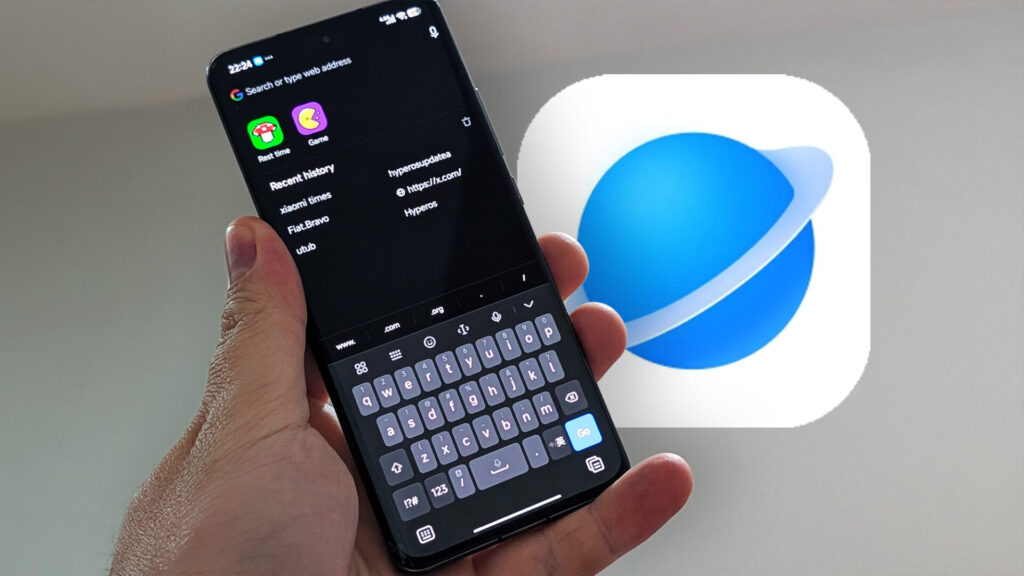
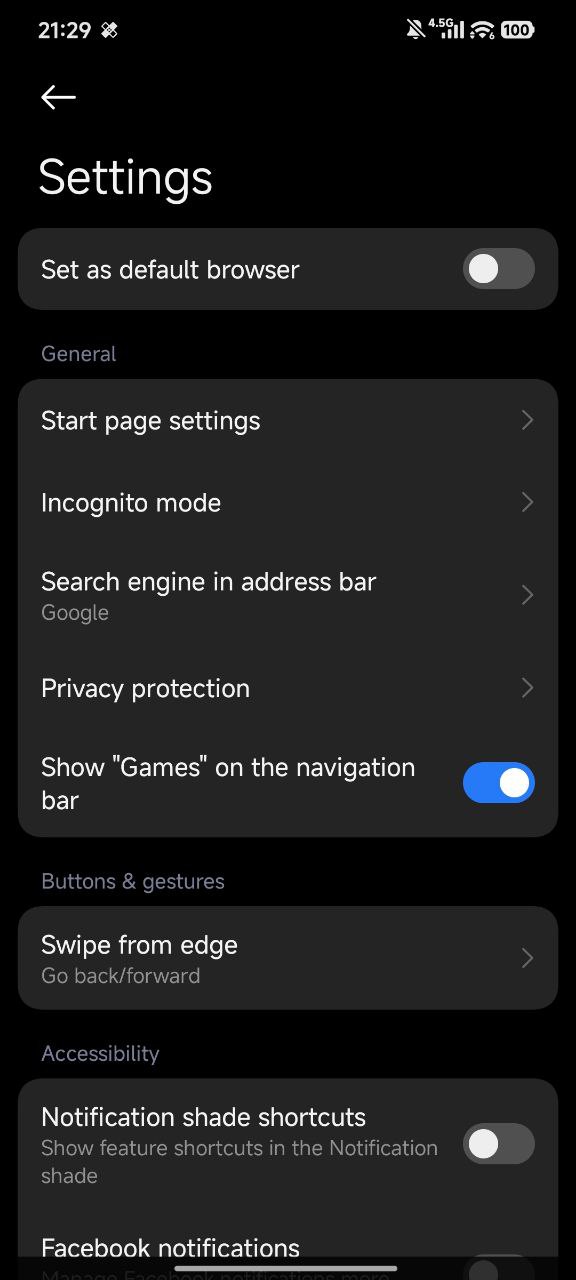
To be honest, when I bought a Xiaomi phone, the first thing I usually did was move “Google Chrome” to the home screen. We’ve been using Google Chrome for years, accustomed to the idea that it’s “synchronized, secure, and fast.” But after the HyperOS update, I decided to give Mi Browser a try, and honestly… I don’t think I’ll be going back to Chrome. Here are the 5 “big” features that made me switch from Chrome:
Prebuilt Ad Blocker
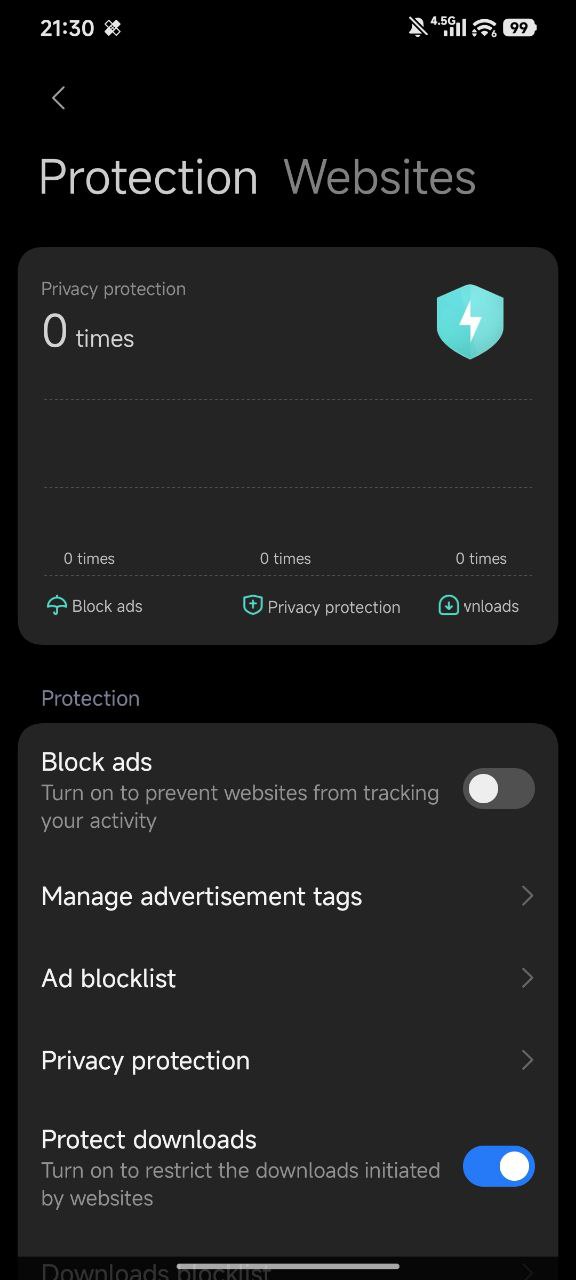
My biggest problem when using Chrome was ads. I’d be reading a news article and I forget to read article because I was too busy closing pop-ups that kept popping up everywhere. To fix this in Chrome, you have to mess around with DNS settings and such.
With Xiaomi Browser, I turned on “AdBlock” in the settings and forgot ads. It automatically cleans up ads and pop-ups. Pages load faster, and my data plan and time isn’t wasted on those annoying ads.
Instantly Convert the Page to PDF and Archive It
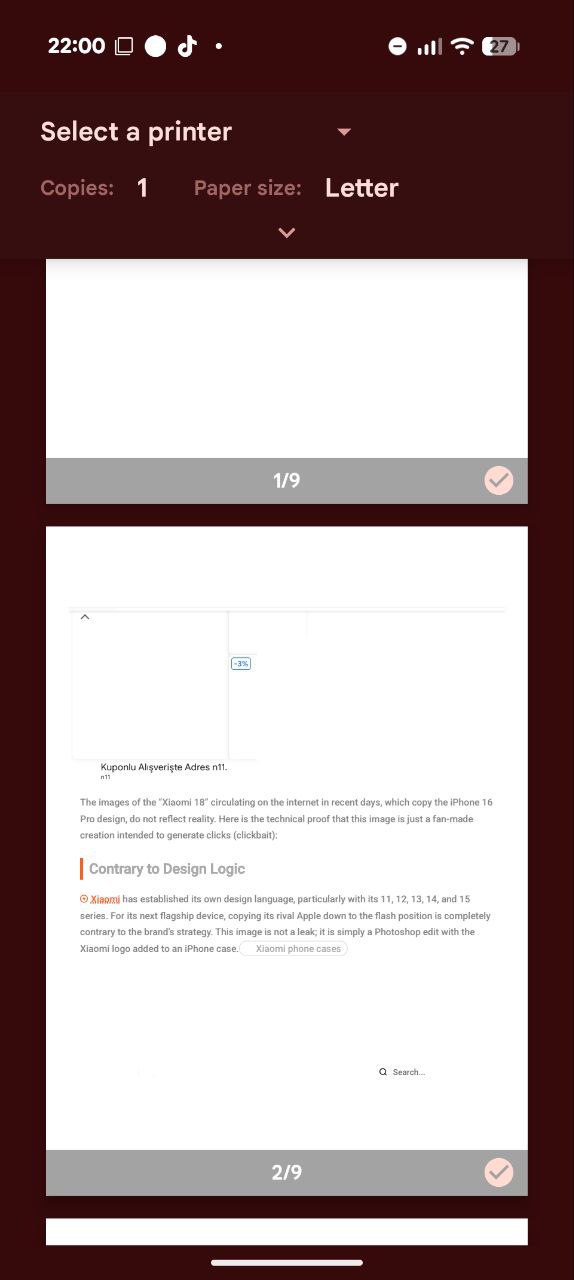
Sometimes I need to save a bill, an article, or technical data. In Chrome, I used to get lost navigating through menus like “Share -> Print -> Save as PDF” to convert a page to PDF.
In Xiaomi Browser: There’s a “Save as PDF” button in menu. I tap it, and the page downloads as is. It’s incredibly practical for offline reading or archiving.
Also, when downloading PDFs in Google Chrome, the page layout and theme get messed up. It downloads in reading mode. In Mi Browser, the page downloads as is.
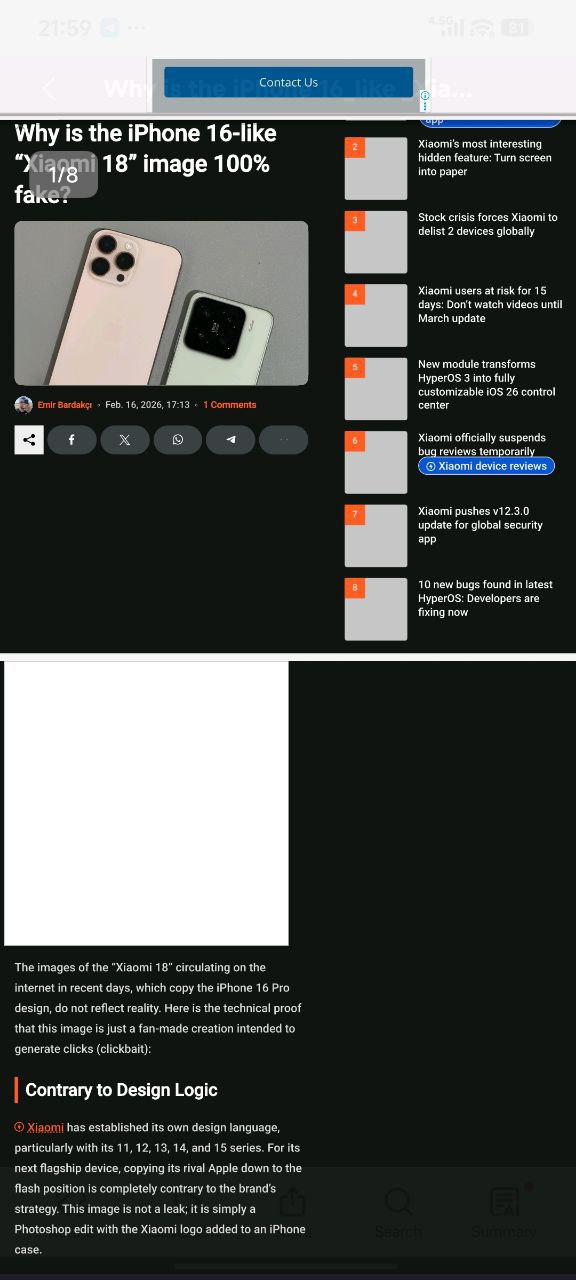
My Pocket Assistant: OmniAsk
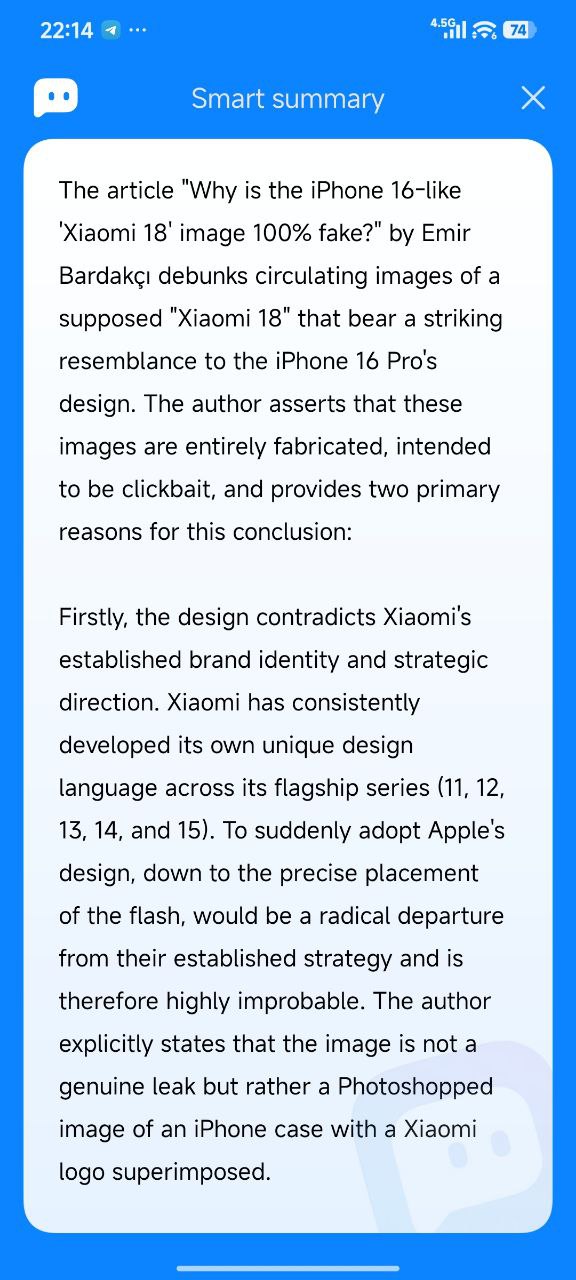
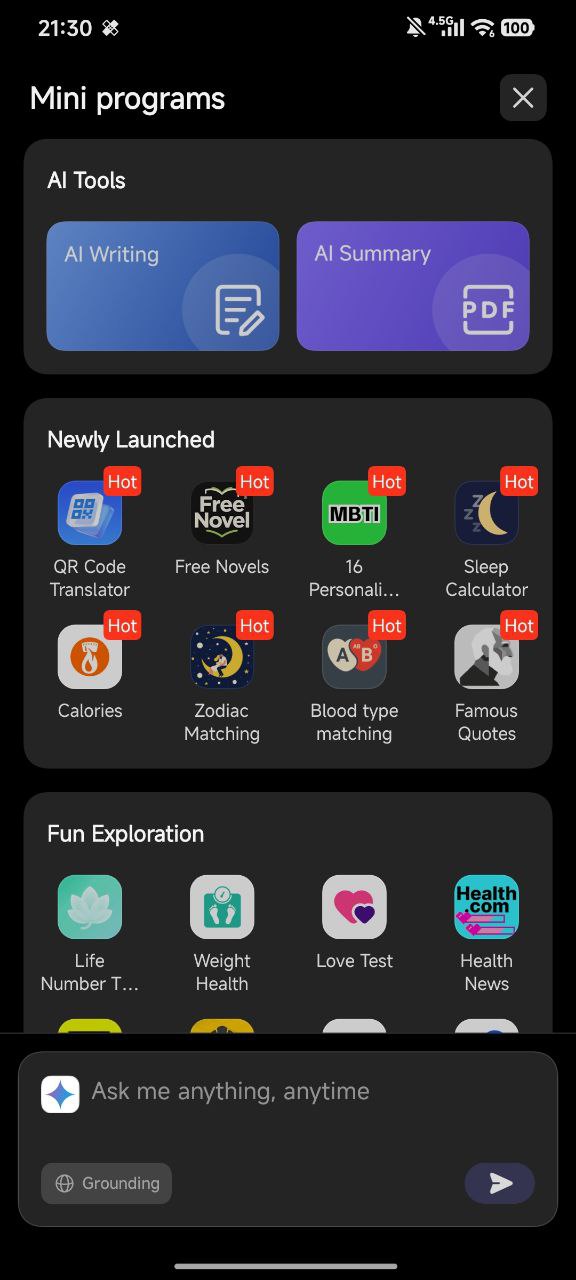
AI is everywhere now, but it’s amazing how well it’s integrated into the browser. I was doing some research recently, and instead of reading long articles, I clicked on the AI Summary feature in the browser, and it gave me a summary of the page.
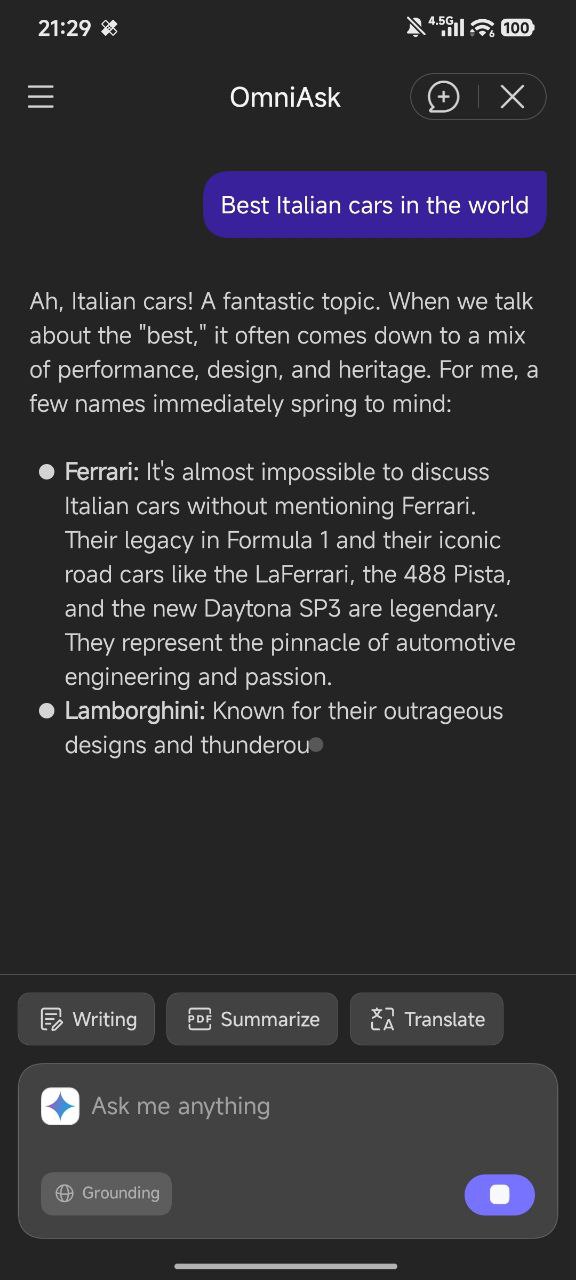
Sometimes, instead of searching on Google, I just ask the assistant in the browser. It responds as if someone were right there in front of me. To get this experience in Chrome, I have to open Gemini separately.
4. Eye Health and Focus: Reading Mode
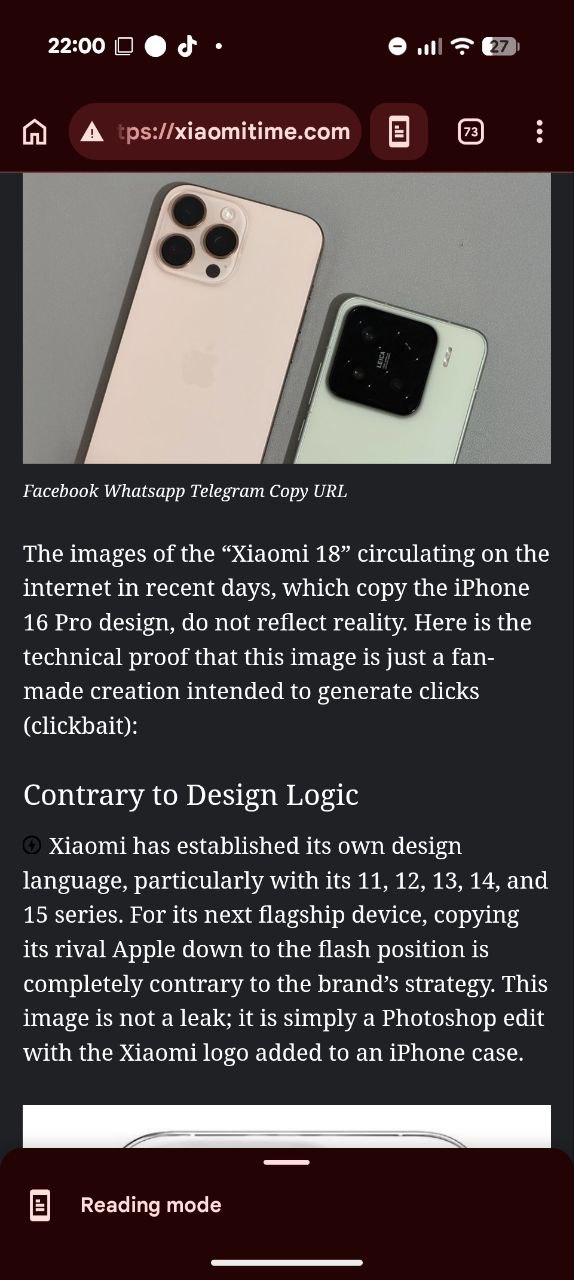
If images popping up all over the place on news sites or blogs distract you, this feature is just what you need. In Xiaomi Browser, when I tap the “Reader Mode” icon in the address bar, it cleans up the site, leaving only the text and relevant images. Also, when I force Dark Mode, it turns even pure white sites into a black background, so it doesn’t hurt my eyes at night.
This feature is also available in Google Chrome, but it doesn’t work if the page doesn’t support reading mode. Mi Browser runs this feature under all conditions.

5. Full Integration with the HyperOS File System
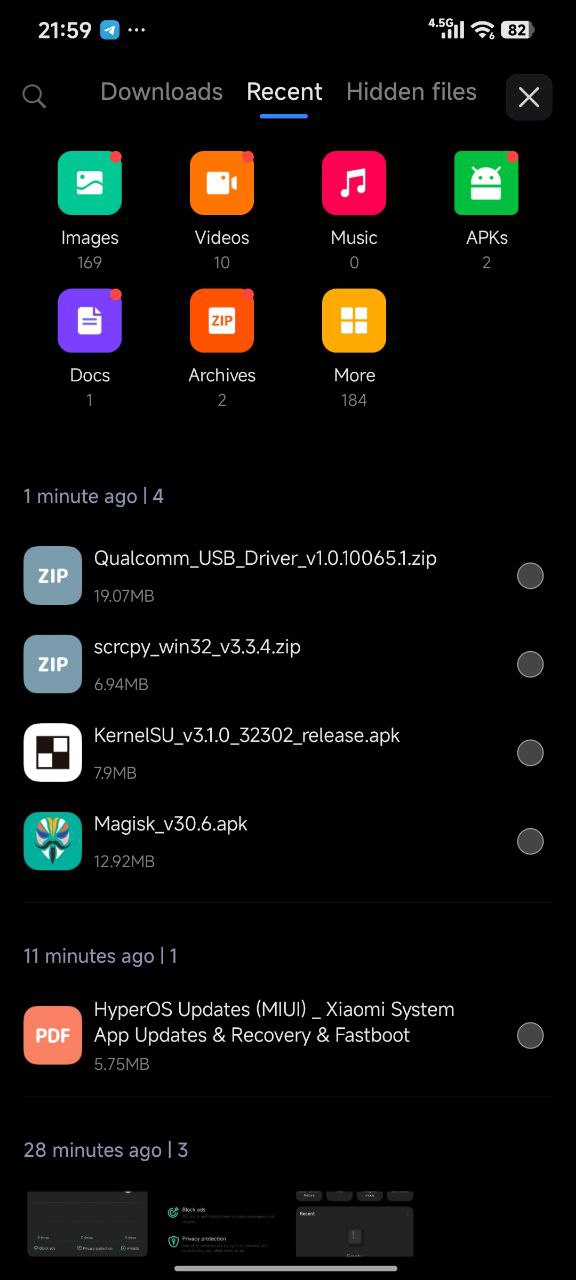
When I download something in Chrome, it sometimes disappears from the “Downloads” folder. In Xiaomi Browser, the browser communicates directly with HyperOS’s own file manager (Files). The files, documents, or APKs I download are categorized and readily available. When I select “Files” from the menu, I can access everything without digging deep into my phone. That’s how an ecosystem should be.
Google Chrome isn’t bad, but Xiaomi Browser (especially with HyperOS) feels like more than just a browser to me—it feels like a complete internet assistant. If you’re biased against your phone’s own apps like I was, break that bias this time and give it a try for a week.




I tried it for a week before, but I’m having translation issues and problems changing the search engine, and some apps and websites still ask me to open Chrome directly; they don’t open in the browser.