 Emir Bardakçı
You spent hundreds of dollars on a flagship smartphone with a stunning AMOLED display. You excitedly open Netflix, Disney+, or Amazon Prime Video, but there is a problem: The image looks pixelated and muddy. Your internet is fast, settings are on “High Quality,” yet the video never switches to HD.
The problem isn’t your internet connection or your eyes. The issue might be lurking deep within your phone’s system: a change in your Widevine DRM Certification. Many users unknowingly drop from L1 (High Quality) to L3 (Low Quality) certification.
Here is how to detect this issue using the DRM Info app and why it happens.
What is Widevine DRM? L1 vs. L3
Google uses a licensing system called Widevine DRM on Android devices to protect copyrighted content (movies, series) from piracy. There are three levels, but only two matter for us:
-
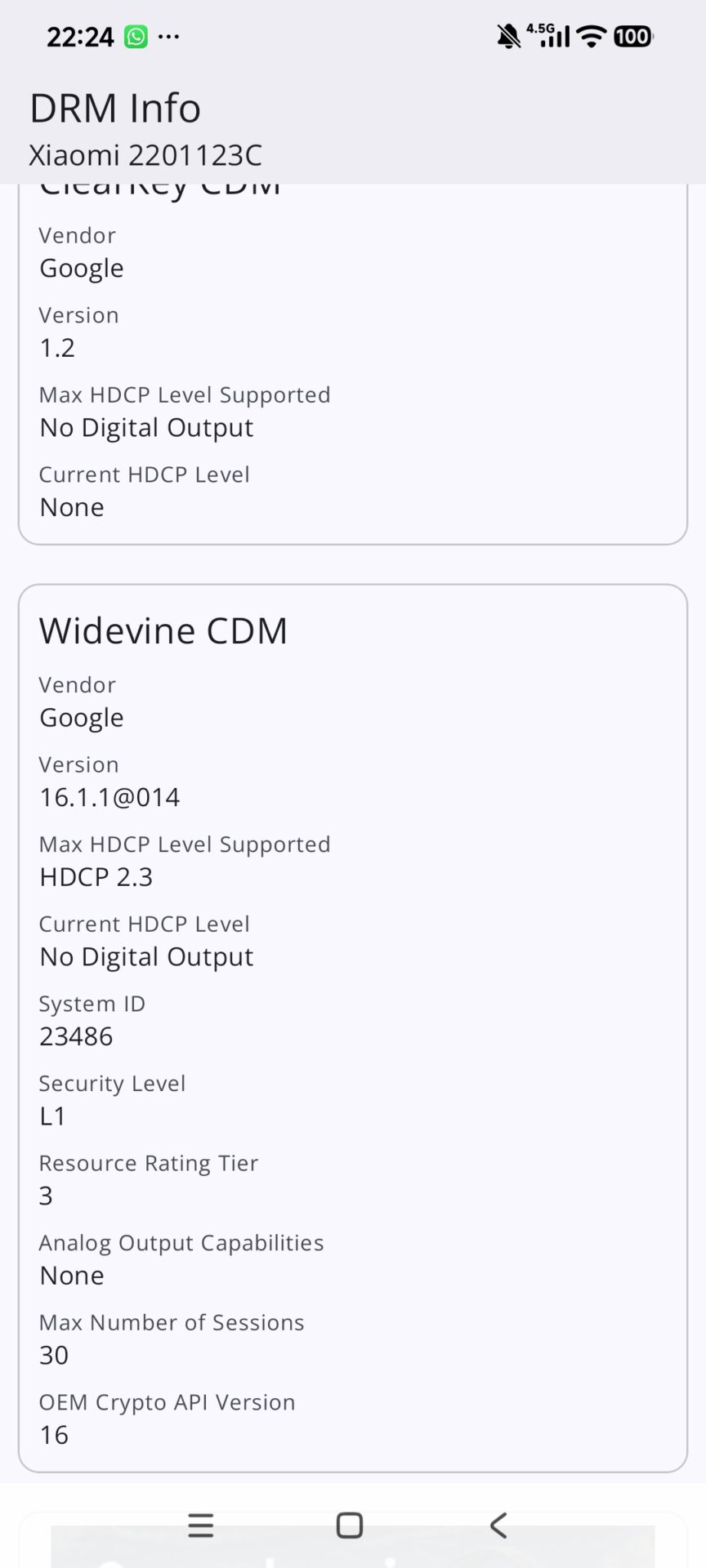
Widevine L1 ( The Good Level): Your device’s security chain is intact. Netflix and other platforms trust your device and allow streaming in HD (720p), Full HD (1080p), and 4K.
-
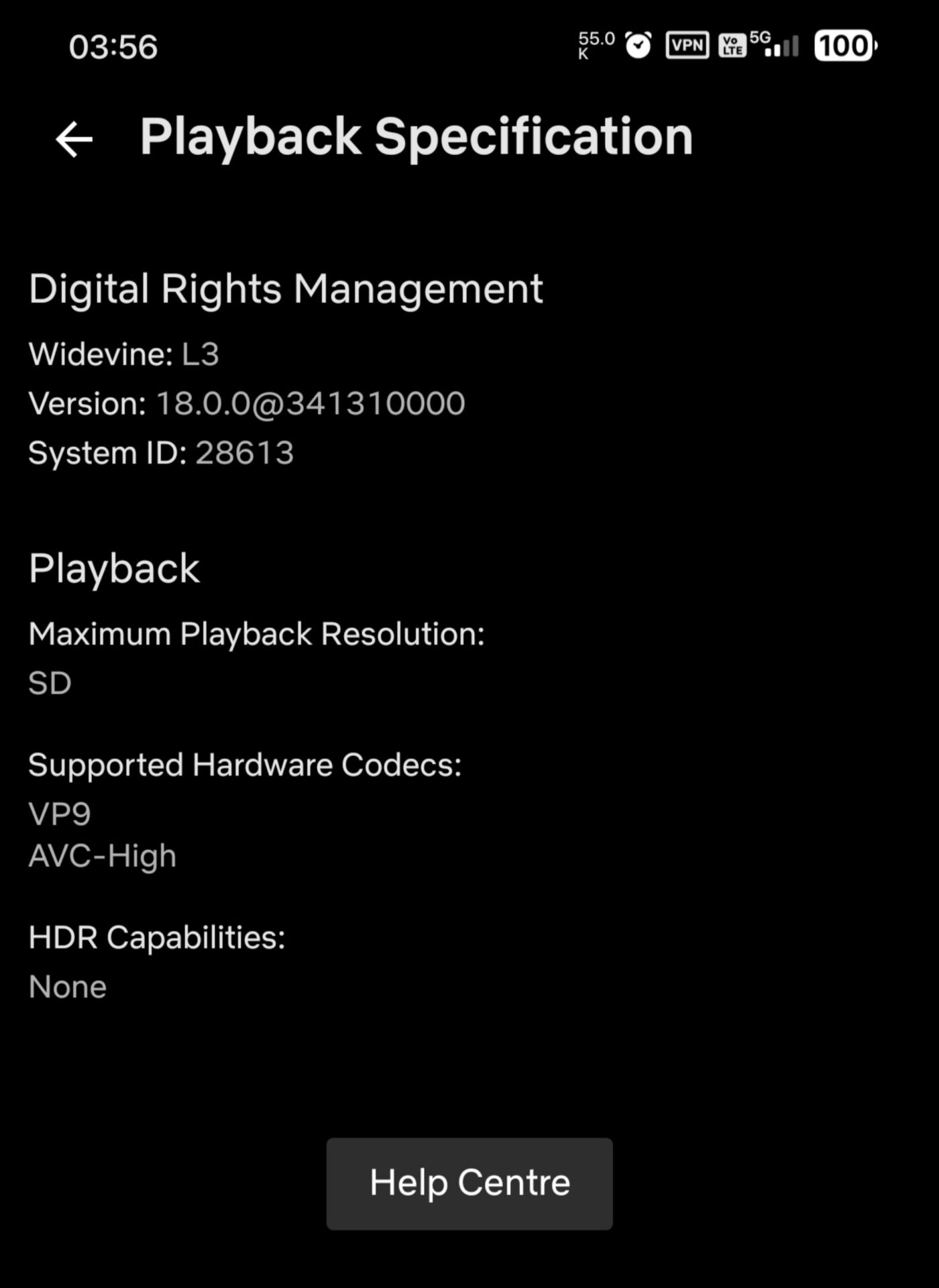
Widevine L3 (The Problem Level): Your device’s security certification has dropped or is missing. To protect the content, platforms restrict video quality to a maximum of 480p (SD) resolution.
Why Does My Device Drop from L1 to L3?
Even if your phone had L1 certification out of the box, it can downgrade to L3 later. Here are the most common reasons:
-
Unlocking the Bootloader: On devices like Xiaomi, OnePlus, or Samsung, the moment you unlock the bootloader, the security protocol is broken, and the system automatically drops to L3.
-
Rooting: Rooting a device disables certain security features, preventing HD streaming.
-
Faulty Software Updates: Sometimes manufacturers (especially Xiaomi/POCO and OnePlus) release a buggy update that corrupts the certification file, forcing the device into L3 mode.
-
China Version Devices: Devices originally made for China that have been flashed with Global ROMs often face certification mismatches.
Step-by-Step Check: Using DRM Info
You can find out your current security level in seconds.
-
Go to the Google Play Store.
-
Search for “DRM Info“ and download the app (usually developed by Android Fung).
-
Open the app. You will see a screen full of technical data.
-
Scroll down to the “Google Widevine Modular DRM” section.
-
Look at the “Security Level” line.
-
-
If it says L1: Your device supports HD. The issue might be in your Netflix settings or internet connection.
-
If it says L3: Bad news. Your device is currently facing a certification issue and is capped at 480p resolution.
-
How to Fix the L3 Issue?
If you see L3 in DRM Info, try these methods:
1. For Xiaomi/POCO/Redmi Users (Download Certificate):
-
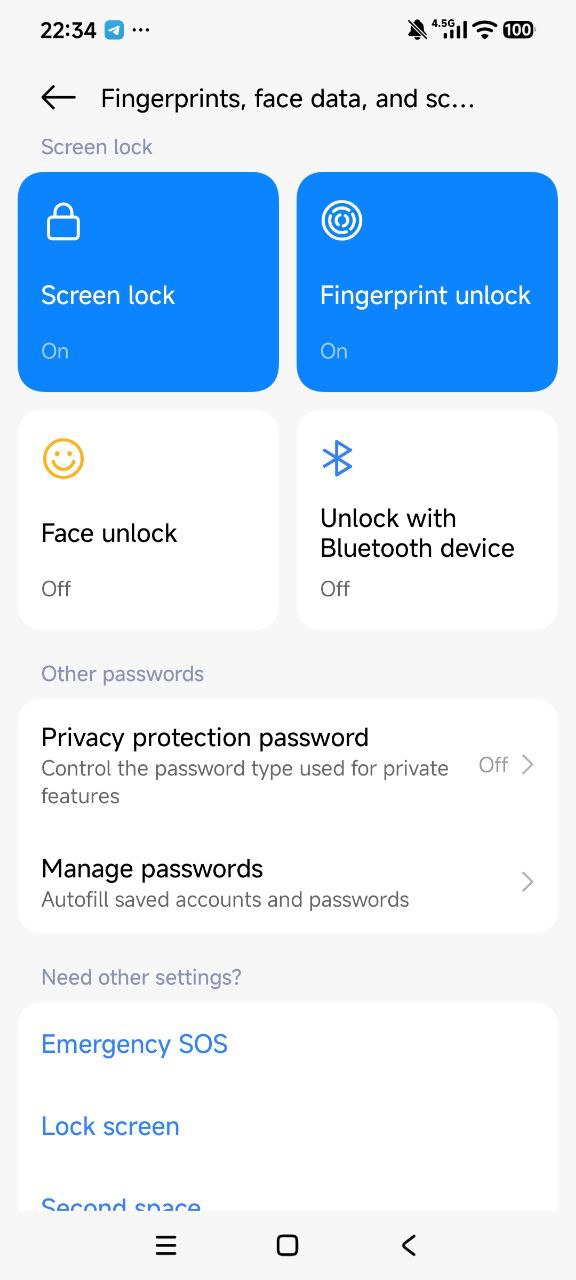
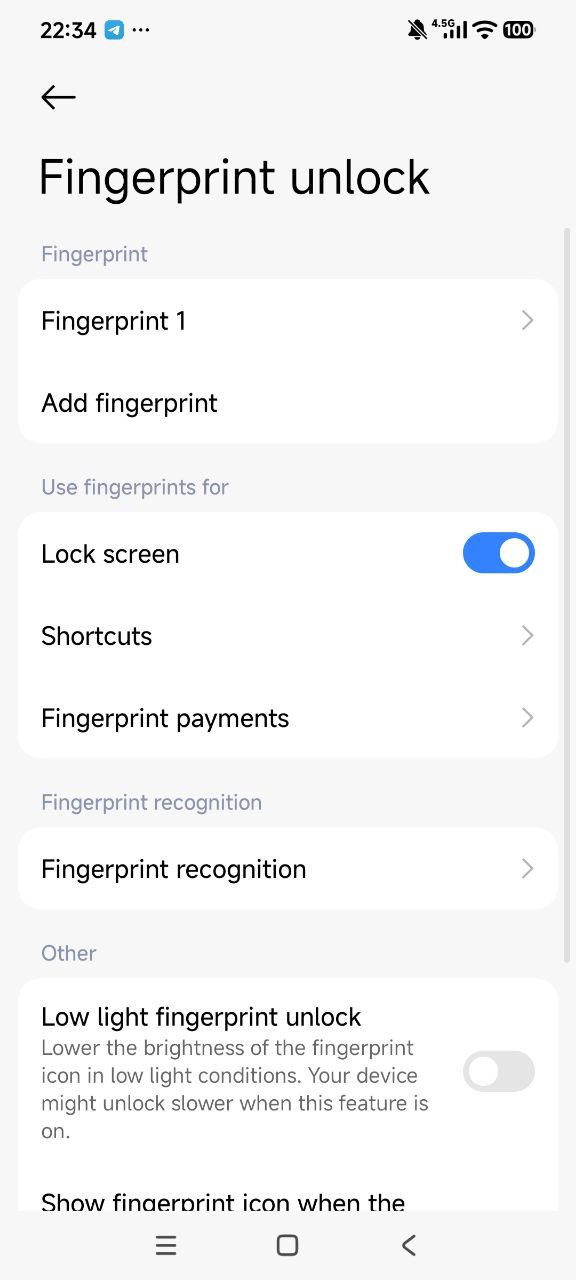
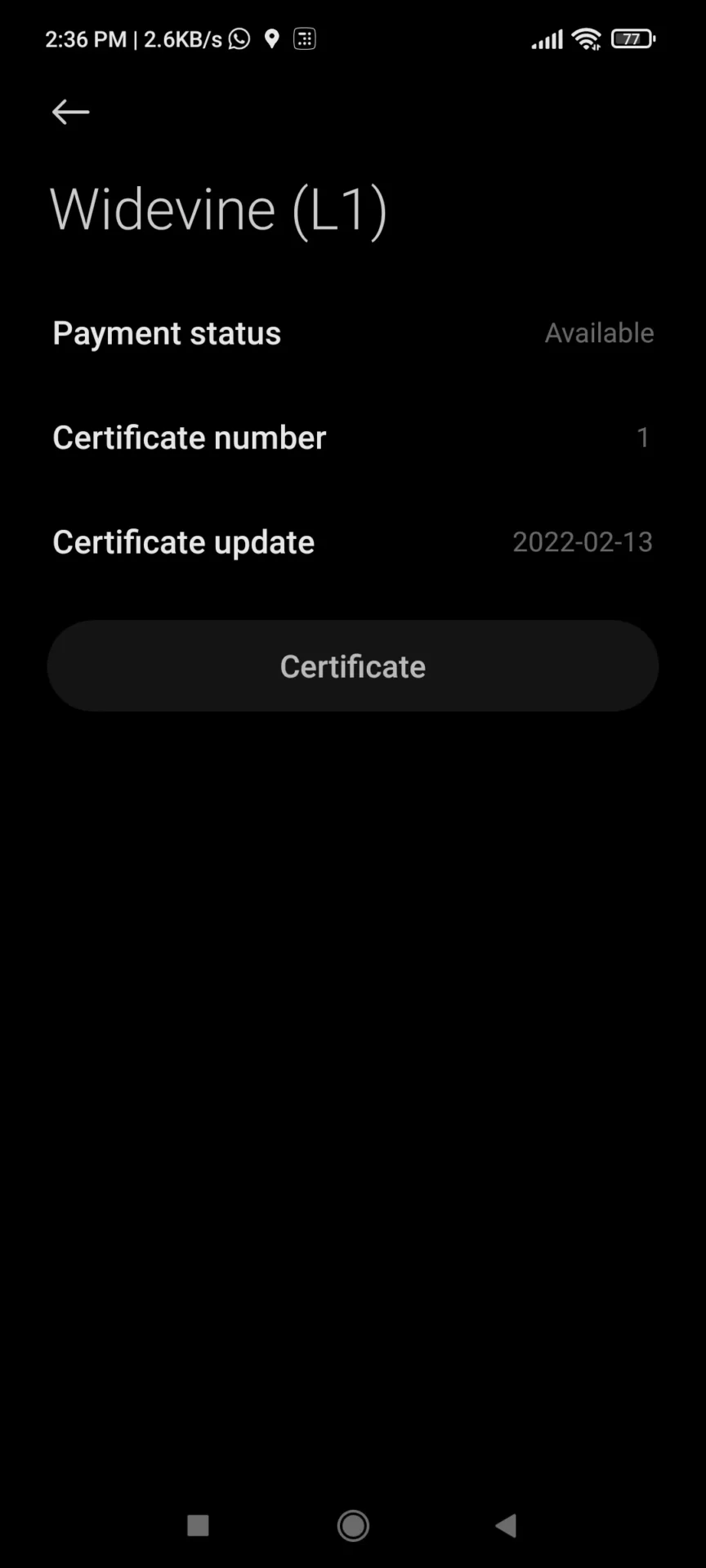
Go to Settings > Fingerprints, face data, and screen lock (or Passwords & Security) > Fingerprint payments > Widevine (L1) > Download Certificate. This process often restores the L1 status.
2. Clear Netflix Data:
-
Go to Settings > Apps > Netflix > Storage > Clear Data.
3. Relock the Bootloader:
-
If you unlocked your bootloader, you may need to Relock it to regain HD streaming (Warning: This will wipe your data).
4. Wait for an Update:
-
If the issue started after a system update, you may have to wait for the manufacturer to release a “fix” patch.
To get the most out of your high-resolution screen, it is worth checking the DRM Info app occasionally. This is especially critical when buying a used phone—checking the Widevine level can save you from the frustration of watching blurry, low-quality videos in the future.