


We’ve all been there: you’re trying to film an optimal video or take the perfect shot, and then you pinch the screen to zoom, and it just ruins everything. The phone will start to shake, you’ll leave your fingerprints all over the screen, and you’ll likely get an amateur, choppy video. However, what if I told you that the answer to all of these issues has been right beneath your fingertips the whole time? Hidden in the Xiaomi HyperOS settings of the camera is a function that will allow your physical volume buttons to be turned into professional photography tools.
TL;DR
- Stop the shake: Camera shake caused by in-game controls can be eliminated with buttons.
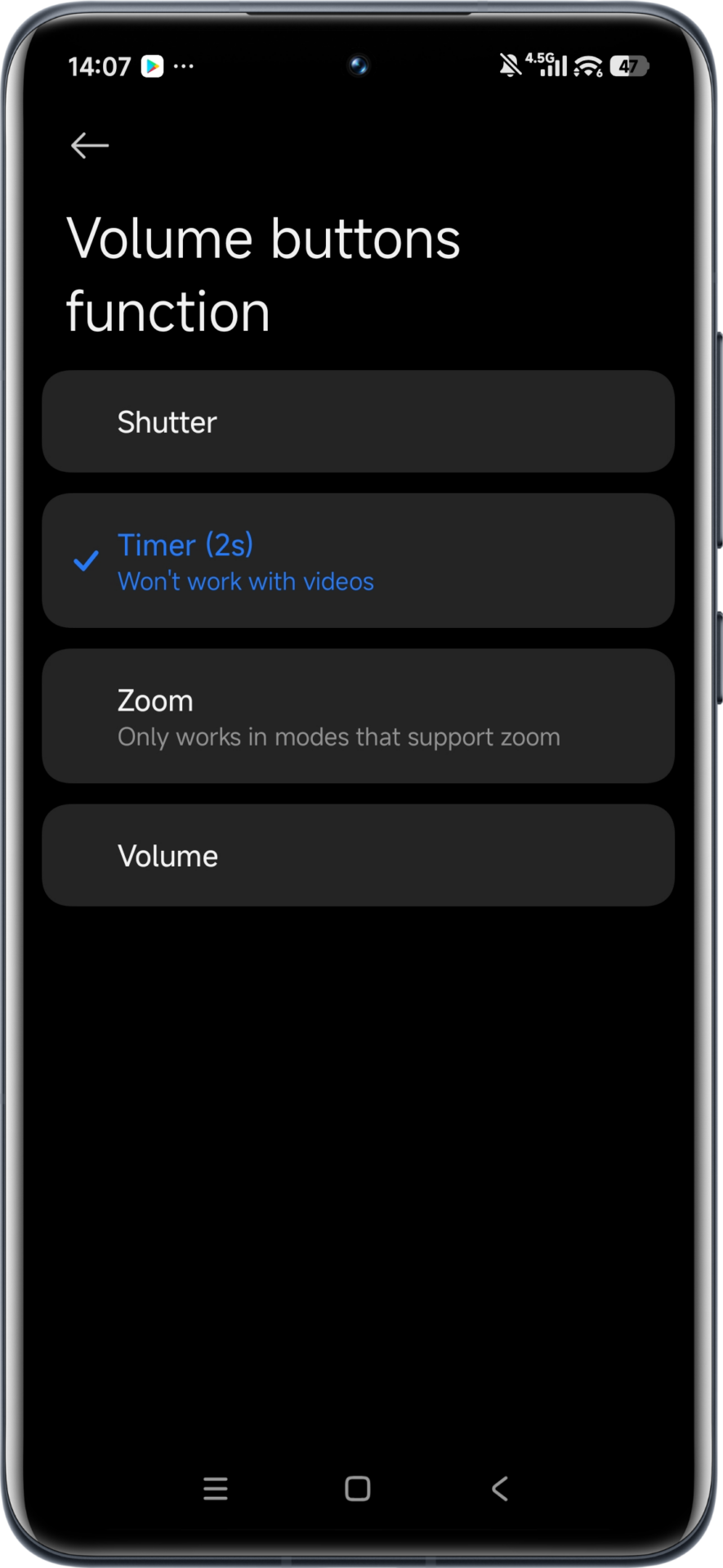
- Four modes: You can set volume keys to Shutter, Timer (2s), Zoom, or Default Volume.
- Pro Tip: The Zoom feature enables smooth cinematic zooming during video recording.
- Hidden menu: This option works on both the old MIUI versions and the new Xiaomi HyperOS.
Your Volume Buttons are Multitools!
The truth is that most smartphone users just accept the defaults. In fact, some estimates show that 70-80% of smartphone users are not even aware that their volume rocker is capable of anything more than controlling system sound or taking a quick picture. Although the “Shutter” mode is quite useful, Xiaomi HyperOS provides a set of options that can greatly change the way you record content. By exploring the options, it is possible to assign the keys according to your preferences.
How to Unlock the ‘Volume Buttons Function’
The way to get to this menu is not difficult to understand, but it can be easily overlooked unless one is specifically trying to get to it. This is how we set it up on our devices:
- Open the default Camera application on your Xiaomi smartphone.
- Click on the Menu button (often represented by three horizontal lines) in the top right corner.
- Tap Settings, then look for Volume buttons function.
Why You Should Switch Today
But if you are serious about smartphone photography, you should not be using touch controls. You can see what you are doing while using the button, but you cannot see your fingers. Give the Zoom function a go for your next video, or use Timer (2s) for your next low-light photography task. You will be surprised that you did not have this before.



The new Hyperos 3.0.4 update causes lag in some icons when opening the app